
Contact sales

Our software caters to all the verticles of equipment rental businesses. Have other plans? Share yours.

Chat with us

Contact sales

Our software caters to all the verticles of equipment rental businesses. Have other plans? Share yours.

Chat with us
RentInnoLogo
Security Deposit

Security deposit management for rental businesses

Each rental carries a risk. Set a security deposit per product or per quotation and make sure you are covered before anything leaves your premises.

RentInno security deposit management dashboard

Every part of your security deposit workflow - handled without the manual work

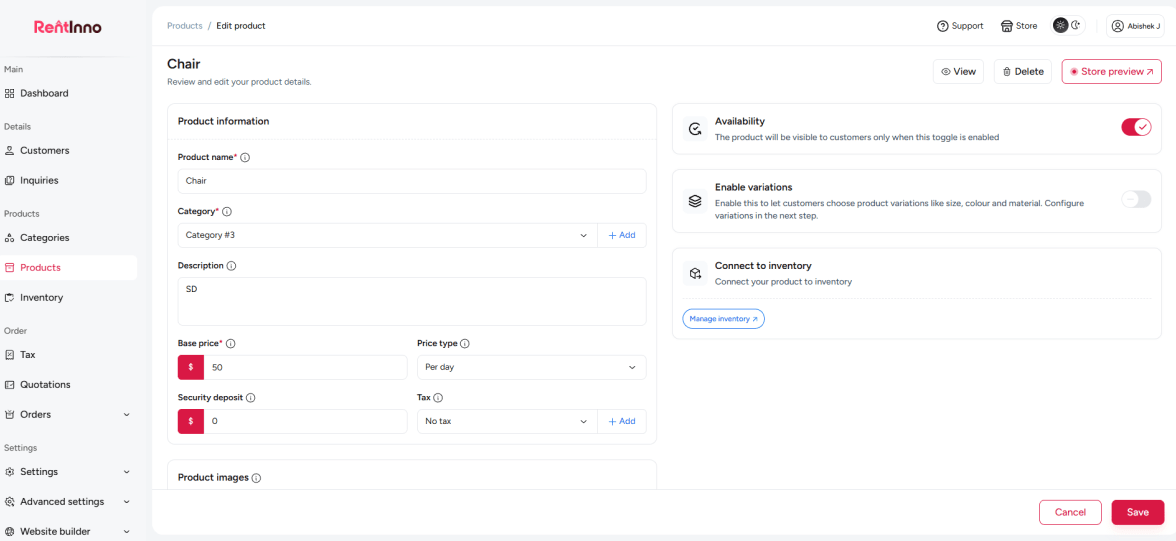
Set a deposit on every product once

Most rental businesses forget to collect a deposit because there is no system for it. In RentInno, you set a security deposit amount directly on the product page. Every quotation that includes that product carries the deposit automatically. You set it once, and it appears every time.

Set a deposit on every product once

Add or adjust a deposit on any quotation

Some rentals need a higher deposit than the product default - a longer rental, a higher-risk customer, or a more expensive job. From the Price details panel on any quotation, click Add security deposit, enter the amount, and it is added to the Grand total instantly. No recalculating. No manual notes.

Add or adjust a deposit on any quotation

Deposit appears on every quotation your customer sees

When a customer receives a quotation, the security deposit is listed alongside the subtotal and the grand total. Nothing hidden. No surprises when they show up. The deposit amount is clear before they confirm anything.

Deposit appears on every quotation your customer sees

Claimed when a unit comes back damaged or lost

A security deposit is only useful if you can act on it when something goes wrong. When a rental unit is marked as damaged or lost on return, the security deposit is claimed. You do not have to chase the customer or remember to follow up - the record is already in the order.

Claimed when a unit comes back damaged or lost

See the suggested deposit whenever you override it

When you set a deposit amount on a quotation that is higher than what was configured on the product, RentInno shows the original product deposit as a suggested amount below the deposit field. It is a reference point - so you always know what was originally configured and can make an informed decision before the quotation goes out.

See the suggested deposit whenever you override it

Your deposit is set - here is what connects next

Quotations

Every quotation includes a security deposit field. Set it per product or add it directly to any quotation before sending it to your customer.

See how Quotations work
Orders

Every order carries the security deposit from the quotation. Track the deposit status alongside the order, payment, and contract - all from one page.

Inventory Tracking

When a unit is marked as Damaged or Lost on return, the security deposit is claimed, and the unit status updates in your inventory automatically.

Quotations

Ready to protect every rental with a security deposit?

Set your first deposit, add it to a quotation, and send it to your customer - all in under two minutes. Free to start, no installation, no credit card needed.

Frequently asked questions 

What is a security deposit in RentInno?
A security deposit is an amount collected from your customer before a rental begins. It protects you against damage or loss. Set it once per product, and it appears automatically on every quotation that includes that product.
You can set a security deposit in two places. First, on the product page, it applies to every quotation automatically. Second, directly on any quotation from the Price details panel using the Add security deposit option.
Yes. The security deposit appears in the Price details section of every quotation alongside the Subtotal and Grand total. Your customer sees the deposit amount before confirming anything.
Yes. The security deposit has its own dedicated field - completely separate from the rental amount calculation. Setting or changing the deposit does not affect the subtotal or the rental price.
How do I set a security deposit on a product?
Open the product page and find the Security deposit field below the Base price. Enter the deposit amount and save. Every quotation that includes this product will carry this deposit automatically.
Yes. Each product has its own Security deposit field. Set a different amount per product based on its value or risk level.
Yes. Open the quotation, find the Price details panel, and click Add security deposit. Enter the amount you want to apply to this specific quotation. It updates the Grand total instantly.
When you enter a deposit amount on a quotation that is higher than the product-level deposit, RentInno shows the original product deposit as a suggested amount for reference. It helps you make an informed decision before the quotation goes out.
When is the security deposit claimed?
The security deposit is claimed when a rental unit is marked as damaged or lost on return. Update the unit status from the order page, and the deposit is claimed against that unit.
No. You manually update the unit status to Damaged or Lost on return. Once the status is updated, the deposit is claimed and recorded on the order.
If the unit is returned in good condition and marked as Returned, the security deposit is not claimed. You handle the refund to the customer outside RentInno based on your own policy.
Yes. Every order that includes a security deposit shows the amount in the Price details section alongside the Subtotal and total. The deposit record stays on the order page.
Does the security deposit count toward the total?
Yes. The security deposit is added to the total on the quotation and order. Your customer sees the full amount, including the deposit, before confirming.
The security deposit is part of the total on the quotation and order. Payment collection is handled through the Update payment option on the order page where you can record full or partial payments.
Yes. The security deposit amount appears in the Price details section of the rental contract alongside the Sub total and Grand total - visible to both the owner and the customer.
Yes. Open the order, edit the order items, and add the security deposit from the Price details panel. The Grand total and Outstanding amount update automatically.
Contact us through whatsapp